Basic GoAccess Config for Nginx
GoAccess is a program that scans web server log files to produce analytics data. Even in an environment where a frontend script is used to collect logs this can be very helpful for identifying which ips have been connecting to your site, how many people are encountering bad error codes when they visit your site, and even which sites reffered the user to this site via the Referrer HTTP header.
This tutorial will demonstrate how to get GoAccess to read logs from nginx on Ubuntu linux, demonstrating how to build GoAccess from source with ssl support.
Building/Installing GoAccess
Ubuntu has a prebuilt version of goaccess distributed via apt and GoAccess has a page on installing goacess, however both these version don’t support ssl by default, so my recommendation would be to run the first three instructions from the installation section of the previously mentioned document, but make sure to include the --with-openssl option when you run the configuration.
./configure --enable-utf8 --with-openssl
sudo make
sudo make install
You may need the ssl development sdk to run this which can be installed on Ubuntu using
sudo sudo apt install openssl-dev
and like that you should be able to run the command goaccess -V to produce something like:
GoAccess - 1.10.2.
For more details visit: https://goaccess.io/
Copyright (C) 2009-2024 by Gerardo Orellana

Build configure arguments:
  --enable-utf8
  --with-openssl
Running GoAccess as a Systemd service
Here’s a the syntax for a basic systemd service that allows you to:
-
Generate a html file that requests a websocket connection when served.
-
Starts a service that reads the most recent[^1] log file produces by a server such as nginx or apache, then serves it on a websocket port for the generated html file to access.
[Unit]
Description=
After=network.target

[Service]
User=www-data
ExecStart=goaccess /var/log/nginx/_B_.access.log --log-format=COMBINED -o /var/www/_B_/stats.html --port=7890 --real-time-html --ssl-cert _C_ --ssl-key _D_

[Install]
WantedBy=multi-user.target
Where
A is the name of your Service.
B is the full domain of your Application.
C is the location of the ssl public key which is usually a .pem file.
D is the location of the ssl private key which is usually a .pem or sometimes a .key file.
The core of this service is the command following the ExecStart:
goaccess /var/log/nginx/_B_.access.log --log-format=COMBINED -o /var/www/_B_/stats.html --real-time-html --ssl-cert _C_ --ssl-key _D_
where the first argument /var/log/nginx/_B_.access.log is the log file that will be read in the format specified by --log-format=COMBINED which is the default format for nginx.
-o specifies the the name of the output file that can be served by the webserver.
--real-time-html specifies that the report won’t store active information, but instead produce a html file that connects to a websocket server, then run that websocket server.
--ssl-cert and --ssl-key specify the certificate file and the private key to get a SSL connection. I like using Certbot to manage my certs, so the ExecStart command can be replaced with:
goaccess /var/log/nginx/_B_.access.log --log-format=COMBINED -o /var/www/_B_/stats.html --port=7890 --real-time-html --ssl-cert=/etc/letsencrypt/live/_B_/fullchain.pem --ssl-key=/etc/letsencrypt/live/_B_/privkey.pem
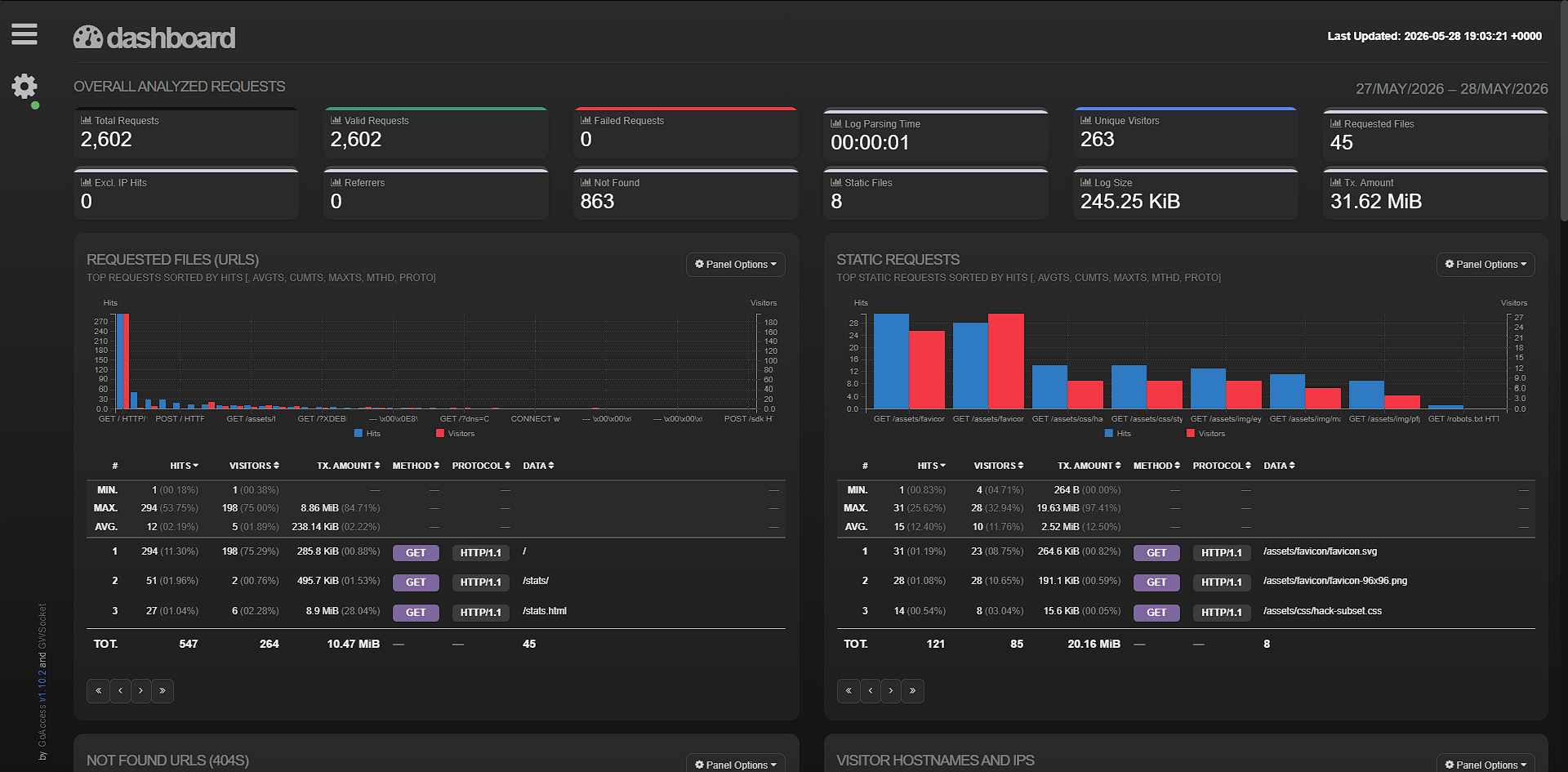
And just like that, you should have a nice dashboard for displaying statistics about your website like the one visible in the photo below.
Hopefully this tutorial helped you get your GoAccess working. Feel free to contact me if you need troubleshooting assistance.